download_url = (
    "https://www.star.nesdis.noaa.gov/data/pub0015/coastwatch/"
    "rads/sla/2024/rads_global_nrt_sla_20240119_20240120_001.nc"
)HTTPS Downloads of CoastWatch Data
1. Introduction
You can download most CoastWatch data directly from a secure web server using HTTPS.
- Get Full Files: HTTPS is the standard web method used to download complete, original files.
- Great for Big Tasks: This method is ideal when you need to download a lot of data at once (for example, 10 years of daily global satellite data).
- Full Data vs. Small Pieces: Some servers (like ERDDAP or THREDDS) let you cut out and download just a small slice of a dataset. HTTPS is different—it is best when you want the whole, raw file.
What You Will Learn
In this tutorial, you will learn how to:
- Find files: Explore the folder structure of a web server to find the files you need.
- Download one file: Use Python to automatically save a single file to your computer.
- Download many files: Use a Python script to download multiple files automatically.
Tip: While this guide uses CoastWatch data as an example, you can use these same Python steps to download files from other HTTPS web servers.
2. Environment Requirements:
- Python Version: 3.6+ (3.9+ recommended)
- Dependencies: requests, tqdm
Library installation examples for running in a code block
Option 1: For standard Python environments
!pip install –quiet “requests>=2.25.0” “tqdm>=4.50.0”
Option 2: For Conda or Mamba environments
%conda install –quiet –yes -c conda-forge “requests>=2.25.0” “tqdm>=4.50.0” Or %mamba install –quiet –yes -c conda-forge “requests>=2.25.0” “tqdm>=4.50.0”
3. Dataset for This Tutorial
We’ll use the CoastWatch Sea Level Anomaly and Geostrophic Currents datasets for the examples in this tutorial.
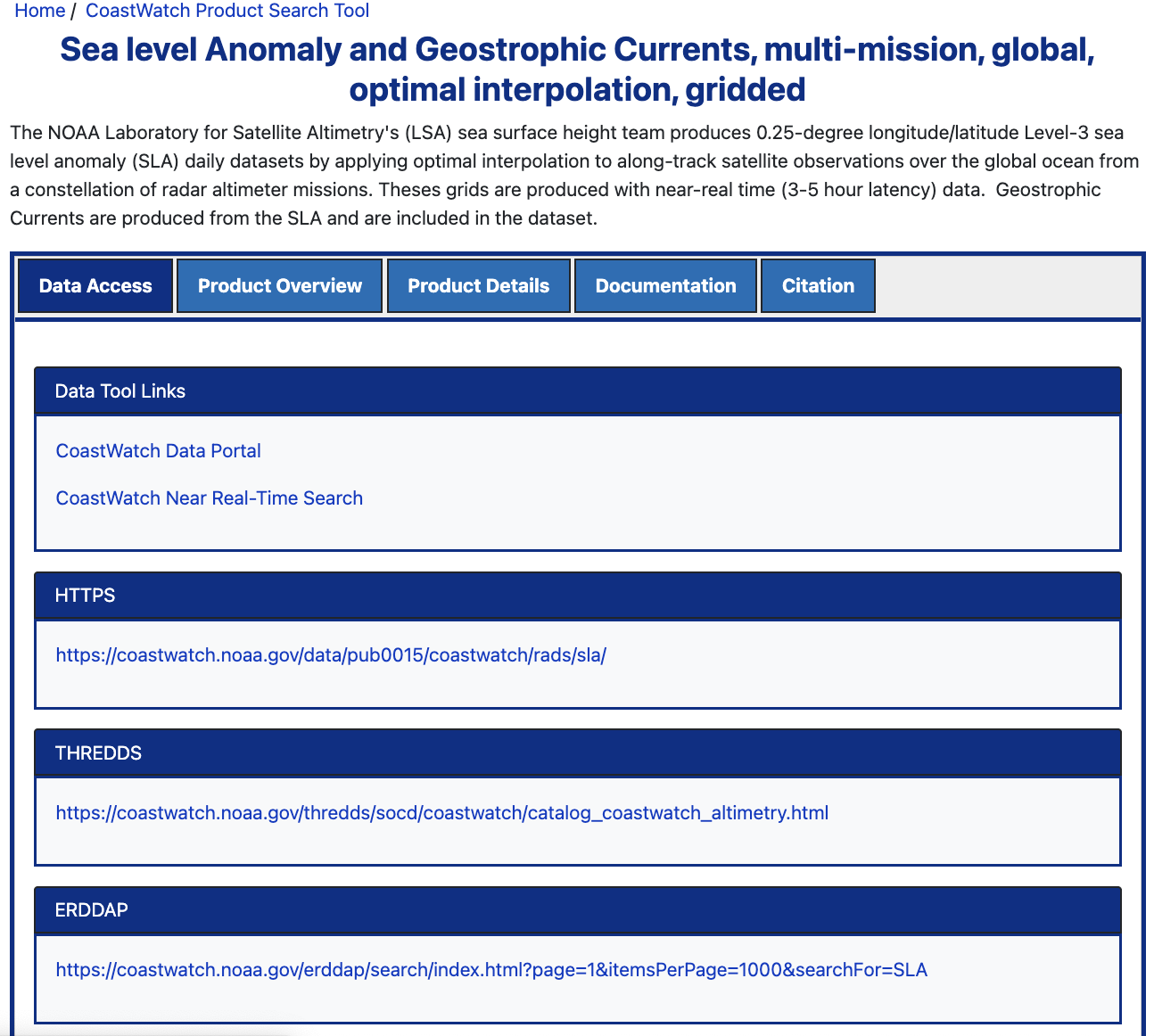
- First Step: Open the dataset documentation page.
- https://coastwatch.noaa.gov/cwn/products/sea-level-anomaly-and-geostrophic-currents-multi-mission-global-optimal-interpolation.html
- The dataset documentation page give you access to the product overview, details, and citations.
- The “Data Access” tab points you to all of the ways to download and visuallize the the data from the dataset.
3.1. Exploring the HTTPS Directory
On the “Data Access” of the documentation page, scroll down and click the HTTPS link.
- The folders are organized by year (from 2015 to the present).
- Note that other datasets might use different setups, like sorting by month or region.
Open the 2024 folder. Inside, you will see a long list of data files.
3.2. File naming conventions:
The files in this dataset follow a strict naming pattern:
rads_global_nrt_sla_20240119_20240120_001.nc
Here is what each piece of the name means:
- rads: Radar Altimeter Database System (the system used to gather data).
- global: Covers the entire global ocean.
- nrt: Near Real-Time data (collected quickly).
- sla: Sea Level Anomaly dataset.
- 20240119: The date the data was collected (January 19, 2024).
- 20240120: The date the file was processed (January 20, 2024).
Note: Different CoastWatch datasets use different naming styles. Always check the documentation for the specific data you are using.
3.3. Get the File Link for the Python Example
We will look for the file from January 19, 2024: rads_global_nrt_sla_20240119_20240120_001.nc
- If you click the file name in your browser, it downloads normally to your computer.
- Instead, we want to download it automatically using Python.
- Right-click the file name and choose “Copy link address” to get its web path.
The full web path looks like this:
Put the URL into a variable called download_url, as shown.
4. Single File Downloads with Python
4.1. The barebones code
The code below is a bare-bones example that downloads a file from the CoastWatch HTTPS server.
The requests package provides a simple way to download files from web servers.
When requests.get() is given an HTTPS URL, it connects to the server and requests the file.
By setting stream=True, the file is downloaded in small pieces instead of all at once. Each piece is written directly to disk as it arrives, making it efficient to download large satellite data files without loading the entire file into memory.
import requests
from pathlib import Path
from urllib.parse import urlparse

# Full path to save the file
filename = Path(urlparse(download_url).path).name
output_dir = Path("./")
output_path = Path(output_dir, filename)

# Download with streaming
response = requests.get(download_url, stream=True)
response.raise_for_status()

with open(output_path, "wb") as f:
    for chunk in response.iter_content(chunk_size=8192):
        if chunk:
            f.write(chunk)
The code works, but it leaves out some features that make downloading files more reliable and user-friendly. Let’s add some improvements.
4.2. Download Helper Function
Let’s build a helper function to make our file downloads safe and stable. This function will include several important features:
- Safety Checks: It uses
urlparse()to extract only the filename from the download URL before creating the local file path. This helps prevent unexpected or malicious path components in the URL from affecting where the file is saved. - Automatic Retries: It automatically tries to download the file again if your internet connection blinks or drops.
- Clean Connections: It wraps the download request
(session.get())in awithblock to ensure the web connection closes properly, even if an error occurs. - Timeout Limits: It sets a maximum waiting time so your Python script will not freeze if the web server drops the connection.
- Progress Bar: It shows a visual progress bar so you can see the download happen in real-time. >Alternative Approach: You can also download files using standard computer system tools like
wgetorcurl. We have included a section explaining how to do this in Appendix A.
Python helper function to download files
import requests
from pathlib import Path
from urllib.parse import urlparse
from urllib3.util import Retry
from requests.adapters import HTTPAdapter
from tqdm import tqdm

def download_file_with_python(
    url: str,
    output_dir: str,
    timeout: int = 30,
    retries: int = 3
) -> str:
    """
    Download a file from an HTTPS URL with automatic retries and a progress bar.

    Args:
        url (str): HTTPS URL of the file to download.
        output_dir (str): Local directory where the downloaded file will be saved.
        timeout (int, optional): Maximum number of seconds to wait when
            connecting to the server or receiving data before raising a timeout
            error. Defaults to 30.
        retries (int, optional): Number of times to retry temporary connection
            failures or server errors. Defaults to 3.

    Returns:
        str: The full path to the downloaded file.

    Raises:
        ValueError: If the URL does not contain a valid filename.
        requests.RequestException: If the download fails after all retry attempts.

    Example:
    >>> download_file_with_python(
    ...     url="https://www.star.nesdis.noaa.gov/data/pub0015/coastwatch/rads/sla/2024/rads_global_nrt_sla_20240119_20240120_001.nc",
    ...     output_dir="downloads/sea_level_anom/2024"
    ... )
    '/path/to/downloads/sea_level_anom/2024/rads_global_nrt_sla_20240119_20240120_001.nc'
    """
    # Clean and extract filename safely
    raw_filename = Path(urlparse(url).path).name
    if not raw_filename:
        raise ValueError("URL does not contain a valid filename.")
    filename = Path(raw_filename).name

    # Setup output directory
    out_path = Path(output_dir).resolve() / filename
    out_path.parent.mkdir(parents=True, exist_ok=True)

    # Retry temporary connection failures
    session = requests.Session()
    retry_strategy = Retry(
        total=retries,
        backoff_factor=1,  # Waits 1s, 2s, 4s between retries
        status_forcelist=[429, 500, 502, 503, 504],  # Server-side errors to retry
        allowed_methods=["GET"]
    )
    adapter = HTTPAdapter(max_retries=retry_strategy)
    session.mount("http://", adapter)
    session.mount("https://", adapter)

    # Download the file with streaming, timeouts, & cleanup
    with session.get(
        url,
        stream=True,
        timeout=timeout
    ) as response:

        # Stop if the server returned an error (e.g., 404 or 500)
        response.raise_for_status()

        # Get total file size if server provides it
        total_size = int(response.headers.get('content-length', 0))
        chunk_size = 8192

        # Display download progress
        with open(out_path, "wb") as f, tqdm(

            # Show the filename above the progress bar
            desc=filename,

            # Total file size (if provided by the server)
            total=total_size,

            # Display progress in bytes
            unit='B',

            # Automatically scale units (B, KB, MB, GB)
            unit_scale=True,

            # Use multiples of 1024 for file sizes
            unit_divisor=1024,

            # Keep the completed progress bar visible
            leave=True
        ) as bar:

            # Download and save the file one chunk at a time
            for chunk in response.iter_content(chunk_size=chunk_size):
                if chunk:
                    f.write(chunk)
                    bar.update(len(chunk))

    return str(out_path)
4.3. Usage example
Now that we’ve created our helper function, downloading a file only requires a single function call.
The download function takes four arguments
download_file_with_python(url, output_dir: str, timeout, retries)
- url (str): The HTTPS URL of the file to download.
- output_dir (str): The local directory where the file will be saved.
- timeout (int, optional): Seconds to wait for server connection. Default = 30
- retries (int, optional): Number of times to retry temporary connection failures or server errors. Default = 3
The download function returns the full download path
For this example, we’ll use the default values for timeout and retries, so we only need to provide:
- HTTPS URL of the file to download.
- The directory where the file should be downloaded.
from pathlib import Path

# The download_url variable is defined above
out_dir = Path("downloads") / "sea_level_anom" / "2024"

# Download the file
saved_file = download_file_with_python(download_url, out_dir)

# Display the full path to the downloaded file
print(f"File saved to: {saved_file}")
5. Bulk Downloads
We can take advantage of consistent web links and file names to download large sets of data automatically.
For this Sea Level Anomaly and Geostrophic Currents dataset:
Web Links Follow This Setup:
www.star.nesdis.noaa.gov/data/pub0015/coastwatch/rads/sla/YYYY/(Where YYYY is the four-digit year you want to download).
File Names Follow This Setup:
rads_global_nrt_sla_20240119_20240120_001.nc(Where 20240119 is the exact date the data was collected, written as YYYYMMDD for January 19, 2024).
5.1. Task Scenario
Our goal is to download all June NetCDF (.nc) files for the years 2022 and 2023 from the CoastWatch HTTPS server.
Now that we can download individual files, the next step is to automate the process for many files. Rather than manually opening each HTTPS directory and copying file links, Python can request the directory webpage, identify the available files, filter the results based on a naming pattern, and download every matching file automatically.
Step-by-Step Workflow:
- Loop through each year: Visit the HTTPS directory for one year at a time.
- Collect the available file links: Write a helper function
scrape_http_files()that reads the web page and collects all the.ncfile links from that year’s directory and store them in a Python list. - Filter for June: Look through the list and keep only the files that have June (
YYYY06) in their name. - Download the data: Save the filtered June files directly to a folder on your computer using our
download_file_with_python()helper function. - Repeat for the next year: Create a new list of file links for the next year’s directory, filter the desired files, and download the matching data until all requested years have been processed.
5.2. Helper Function to Collect File Links
When you open an HTTPS directory in your web browser, you’re actually viewing an HTML webpage that contains hyperlinks to each available file. Instead of copying those links manually, Python can retrieve the webpage, identify the file links, and return them as a list.
We can do this using the BeautifulSoup package, which parses the HTML and allows Python to locate every hyperlink on the page. We can then filter those links by file extension (such as .nc) before returning the complete download URLs.
The helper function below requires three inputs:
- url: The web link of the folder we want to search.
- file_ext: The specific file type we want to keep (like
.nc). - timeout: How many seconds Python should wait for the website to respond before giving up.
It returns a sorted list of complete download URLs that match the requested file type.
import requests
from bs4 import BeautifulSoup
from urllib.parse import urljoin
from typing import Union, List, Optional

def scrape_http_files(
    url: str,
    file_ext: Optional[Union[str, List[str]]] = None,
    timeout: int = 10
) -> List[str]:
    """
    Args:
        url (str): HTTPS directory URL to search. A trailing slash is optional.
        file_ext (str or list[str], optional): File extension or list of
            extensions to include (e.g., ".nc" or [".nc", ".txt"]).
            If None, all files are returned.
        timeout (int, optional): Maximum number of seconds to wait for the
            server to respond. Defaults to 10.

    Returns:
        list[str]: A sorted list of absolute file URLs.

    Raises:
        RuntimeError: If the directory listing cannot be retrieved.

    Example:
        >>> scrape_http_files(
        ...     "https://coastwatch.noaa.gov/pub/socd2/coastwatch/sst/ran/l3s/leo/daily",
        ...     file_ext=".nc"
        ... )
        ['https://coastwatch.noaa.gov/.../sst_20250215.nc']
    """
    # Ensure the directory URL ends with a trailing slash
    if not url.endswith('/'):
        url += '/'

    # Request the directory listing
    try:
        response = requests.get(url, timeout=timeout)
        response.raise_for_status()
    except requests.RequestException as e:
        raise RuntimeError(f"Failed to fetch {url}: {e}")

    # Parse the HTML directory listing
    soup = BeautifulSoup(response.text, 'html.parser')

    # Convert a single extension into a list
    if isinstance(file_ext, str):
        file_ext = [file_ext]

    # Standardize extensions for comparison
    if file_ext:
        file_ext = [ext.lower() for ext in file_ext]

    # Store matching file URLs
    files = []

    # Look through each link in the directory listing
    for link in soup.find_all('a'):
        href = link.get('href')

        # Skip empty, internal page anchors, or navigation queries
        if not href or href.startswith('#') or '?' in href:
            continue

        # Skip parent directory variations, root jumps, or subdirectories
        if href.startswith(('../', '/')) or href.endswith('/'):
            continue

        # Keep files matching the requested extension(s)
        if not file_ext or any(href.lower().endswith(ext) for ext in file_ext):
            files.append(urljoin(url, href))

    # Return sorted file URLs
    return sorted(files)
5.3 Complete Workflow
Bulk Download of June netCDF Files (2022–2023)
The workflow below combines the two helper functions (download_file_with_python() & scrape_http_files()) developed earlier to automate downloading multiple files from the CoastWatch HTTPS server.
For each requested year, the code retrieves a list of available NetCDF file URLs using scrape_http_files(). It then filters that list for files collected during the selected month (YYYYMM) and downloads each matching file using download_file_with_python(). Downloaded files are organized into year and month folders.
For demonstration purposes, this example includes a break statement that stops after downloading the first matching file for each year. Once you’ve confirmed the workflow is working correctly, remove or comment out the break statement to download every matching file.
- Note: Without the
break, the workflow would download every June file for both 2022 and 2023 (about 60 daily NetCDF files), which can take several minutes. Remove or comment out the break statement when you’re ready to download the full dataset.
import sys
from pathlib import Path

# Years to download data for
years = [2022, 2023]

# Month to download (1 = Jan, 2 = Feb, ... 6 = June, etc.)
months = [6]

# Loop through each year
for year in years:

    # HTTPS directory for the current year
    url_path = f"https://www.star.nesdis.noaa.gov/data/pub0015/coastwatch/rads/sla/{str(year)}/"

    # Get all NetCDF file URLs for the year
    files_paths_for_year = scrape_http_files(url_path, file_ext=".nc", timeout=10)

    # Loop through each selected month
    for month in months:

        # Format month as two digits (e.g., 06)
        month_str = f"{month:02d}"

        # Pattern used to identify files for this year/month
        search_pattern = f"rads_global_nrt_sla_{str(year)}{month_str}"

        # Keep only files matching the year/month
        files_for_month = [ln for ln in files_paths_for_year if search_pattern in ln]

        # Download matching files
        for file_to_get in files_for_month:

            # Output directory for downloaded files
            out_dir = Path("downloads") / "sea_level_anom" / str(year) / month_str

            # Display file being downloaded
            print("downloading", file_to_get)

            # Download the file
            saved_file = download_file_with_python(file_to_get, out_dir)

            # Display saved file path
            print(f"File saved to: {saved_file}")

            # Stop after the first file for each year for testing
            # Remove this break to download all files for a year
            print("Comment out break to download all files")
            break
6. Things to Keep in Mind
- HTTPS directory structures vary between datasets (by year, month, region, etc.).
- File naming conventions also vary — check documentation before automating.
- Directory listings may include files for multiple product types (SST, Chlorophyll…).
- You may need to filter for the desired product.
- Consider filtering by extension (.nc) to avoid downloading unwanted file types.
7. Assignment
Task 1
Your task is to download the file for the 1st and 16th day of each month between 2019 and 2025, using a different dataset from the CoastWatch HTTPS directory. Organize the downloaded files into subdirectories by year inside a top-level folder named geopolar.
We’ll use:
Dataset: NOAA Geo-Polar Blended Global Sea Surface Temperature Analysis
This dataset combines sea surface temperature (SST) observations from multiple polar-orbiting and geostationary satellites, producing a global SST product at 0.05° (~5 km) resolution.
Instructions
- Open the dataset documentation page.
- Scroll down to the HTTPS section.
- Click the Day + Night link to access the data directory.
- Write Python code to:
- Scrape the available files,
- Select the files corresponding to the 16th of each month,
- Download them into a directory structure like:
💡 Hint: You can adapt the scraping and downloading functions developed in the previous sections.
Good luck, and have fun using your new data access skills!
Appendix A
Using wget or curl for programmatic downloads
- You must have
wgetorcurlinstalled on your system for this function to work.
import subprocess
from pathlib import Path
from typing import Union

def download_with_wget_curl(
    url: str,
    output_dir: Union[str, Path],
    program: str
) -> int:
    """
    Download a file from a URL using either the system wget or curl command-line utility.

    Args:
        url (str): The HTTP or HTTPS URL of the file to download.
        output_dir (str or pathlib.Path): Directory where the downloaded file will be saved.
        program (str): Download utility to use. Must be either "wget" or "curl".

    Returns:
        int: Return code from the executed download command (0 for success).

    Raises:
        ValueError: If an invalid program name is provided or the URL is empty.
        FileNotFoundError: If the chosen command-line utility is not installed.
    """
    # 1. Input Validation and Normalization
    program = program.strip().lower()
    allowed = {"wget", "curl"}
    if program not in allowed:
        raise ValueError(f"Invalid program '{program}'. Must be one of {allowed}.")

    if not url or not isinstance(url, str):
        raise ValueError("The 'url' argument must be a non-empty string.")

    # 2. Path Standardization
    output_path = Path(output_dir)
    output_path.mkdir(parents=True, exist_ok=True)

    # Extract file name cleanly; drops URL query parameters if present
    file_name = url.split("?")[0].split("/")[-1]
    if not file_name:
        raise ValueError(f"Could not parse a valid filename from URL: {url}")

    download_path = output_path / file_name

    # 3. Build Safe, Standardized CLI Commands
    if program == "wget":
        # -q: quiet, -P: destination directory
        cmd = ["wget", "-q", "-P", str(output_path), url]
    else:  # curl
        # -s: silent, -S: show errors, -L: follow redirects, -f: fail on HTTP errors (404/500)
        # CRITICAL: Without -f, curl returns exit code 0 even if the download drops an HTTP 404 error.
        cmd = ["curl", "-sSLf", "-o", str(download_path), url]

    # 4. Command Execution with System Availability Check
    try:
        result = subprocess.run(cmd, capture_output=True, text=True, check=False)
    except FileNotFoundError as e:
        raise FileNotFoundError(
            f"The CLI tool '{program}' is not installed or not found in system PATH."
        ) from e

    # 5. Result Verification & Output Logging
    if result.returncode == 0:
        print(f"Successfully downloaded: {url} -> {download_path}")
    else:
        # Grab stderr, fall back to stdout if stderr is empty (common in some curl/wget flags)
        error_msg = result.stderr.strip() or result.stdout.strip() or "Unknown CLI error."
        print(f"Error downloading via {program}: {error_msg} (Exit Code: {result.returncode})")

        # Cleanup incomplete/failed download files to keep data pristine
        if download_path.exists():
            download_path.unlink()

    return result.returncode
Usage example
# The download_url variable is defined above

out_dir = Path("downloads") / "sea_level_anon" / "2024"

success = download_with_wget_curl(download_url, out_dir, "curl")

print("zero indicates successfull download", success)