The CoastWatch Utilities Online Course
  • Welcome
  • Intro Video
  • Short Courses
  • Skip To Quiz
    • Unit 1
    • Unit 2
    • Unit 3
    • Unit 4
    • Unit 5
  • Skip to Assignment
    • Unit 2
    • Unit 3
    • Unit 4
    • Unit 5
  1. Unit 2 - Basics of the CoastWatch Data Analysis Tool
  2. Navigating Within the Data View
  • Welcome
  • Unit 1 - Introduction to the CoastWatch Utilities
    • CoastWatch Data Files
    • Graphical Versus Command Line
    • Software Functionality
    • HDF and NetCDF Software
    • Unit 1 Quiz
    • Unit 1 Quiz Answers
  • Unit 2 - Basics of the CoastWatch Data Analysis Tool
    • Opening a Data File
    • Color Palette and Enhancement Range
    • Data Overlays
    • Navigating Within the Data View
    • Data Export
    • Unit 2 Assignment
    • Unit 2 Quiz
    • Unit 2 Quiz Answers
  • Unit 3 - Command Line Tools for Extracting File Information
    • Data File Contents (cwinfo)
    • Rendering Images (cwrender)
      • Color Enhancement Images
      • Color Composite Images
      • Colored Vector Images
      • Hybrid Images
    • Statistics Computations (cwstats)
    • Sampling Locations (cwsample)
    • Data Export (cwexport)
    • Unit 3 Assignment
    • Unit 3 Quiz
    • Unit 3 Quiz Answers
  • Unit 4 - More in Depth with the CoastWatch Data Analysis Tool
    • Mask Overlays
      • Bitmask Overlays
      • Multilayer Mask Overlays
      • Expression Mask Overlays
    • Topographic and Bathymetric Contours
    • Shape Overlays
    • Saving and Loading Overlay Groups
    • Surveying Data Variables
    • Drawing Annotations
    • Color Composite Mode
    • Unit 4 Assignment
    • Unit 4 Quiz
    • Unit 4 Quiz Answers
  • Unit 5 - Command Line Tools for Data Manipulation
    • Generic Variable Math (cwmath)
    • Registration to a Map Projection (cwregister2)
    • Creating Map Projections (cwmaster)
    • Spatial and Temporal Composites (cwcomposite)
    • Direct Software Library Access (cwscript)
    • Automated Data Processing
    • Unit 5 Assignment
    • Unit 5 Quiz
    • Unit 5 Quiz Answers
  • Suggested Short Courses

On this page

  • Navigating Within the Data View
    • Bonus exercises:
  1. Unit 2 - Basics of the CoastWatch Data Analysis Tool
  2. Navigating Within the Data View

Navigating Within the Data View

You can navigate within the data view using the navigation buttons built into the data view. Use Zoom to selection (click and drag), Zoom in, or Zoom to actual size to magnify the data view. Try zooming in on the Eastern Mediterranean Sea:
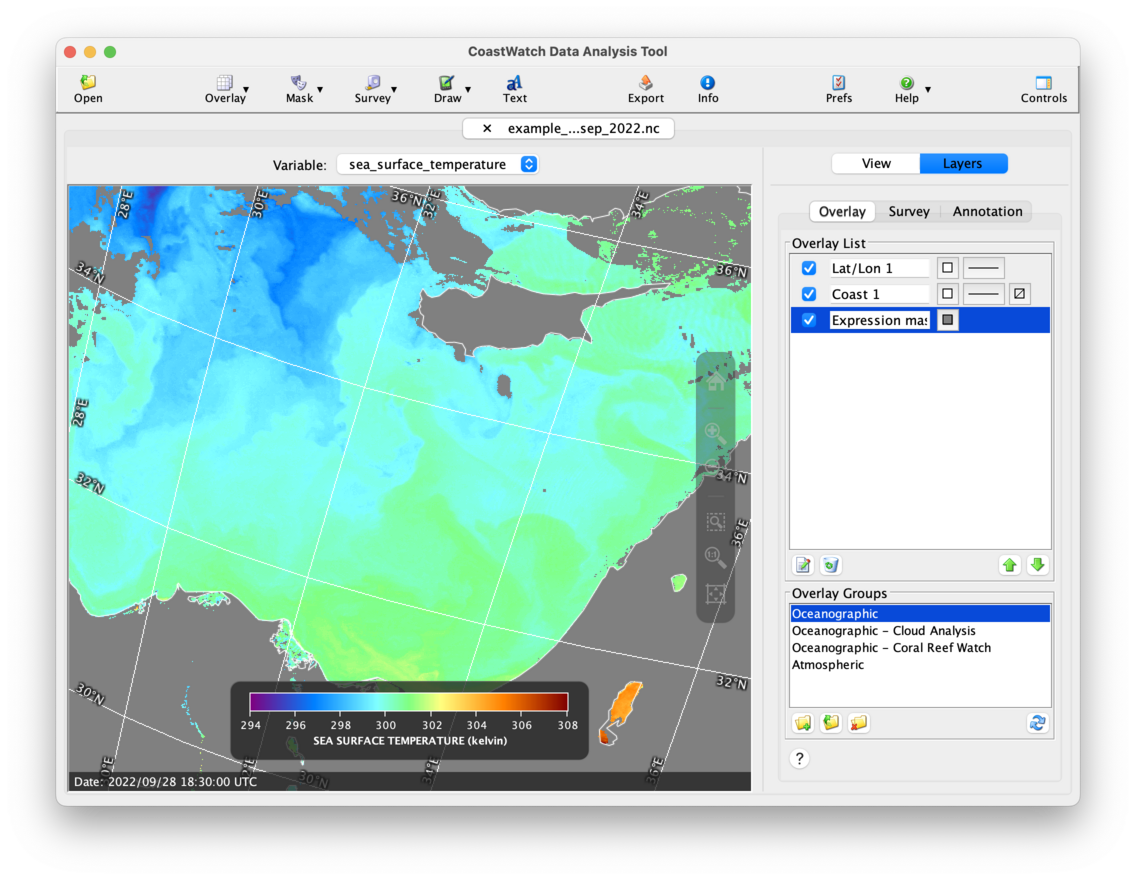
CDAT window showing sea surface temperature data in the Eastern Mediterranean Sea

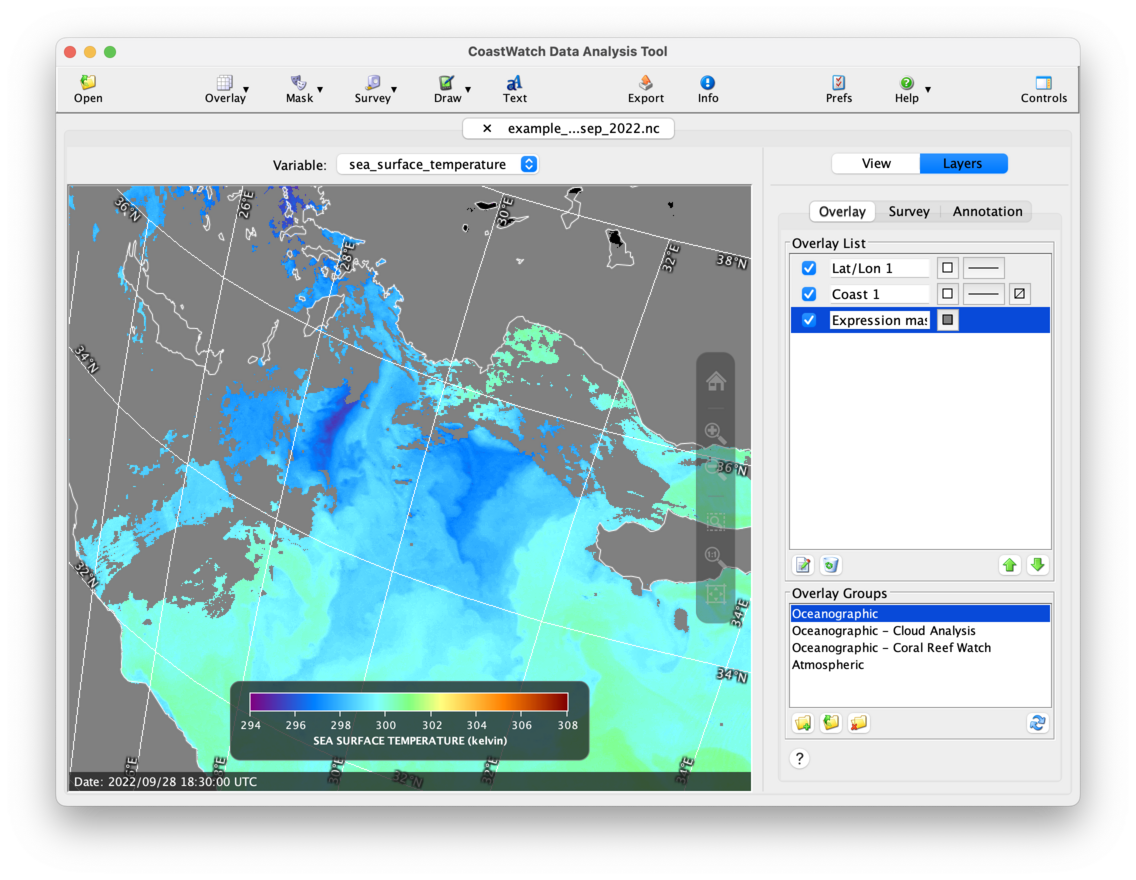
Try panning to the northwest by dragging on the data view:CDAT window showing sea surface temperature data near Greece and Turkey
Use Zoom out, Fill window, or Fit image to window to zoom back out. Try filling the data view window:
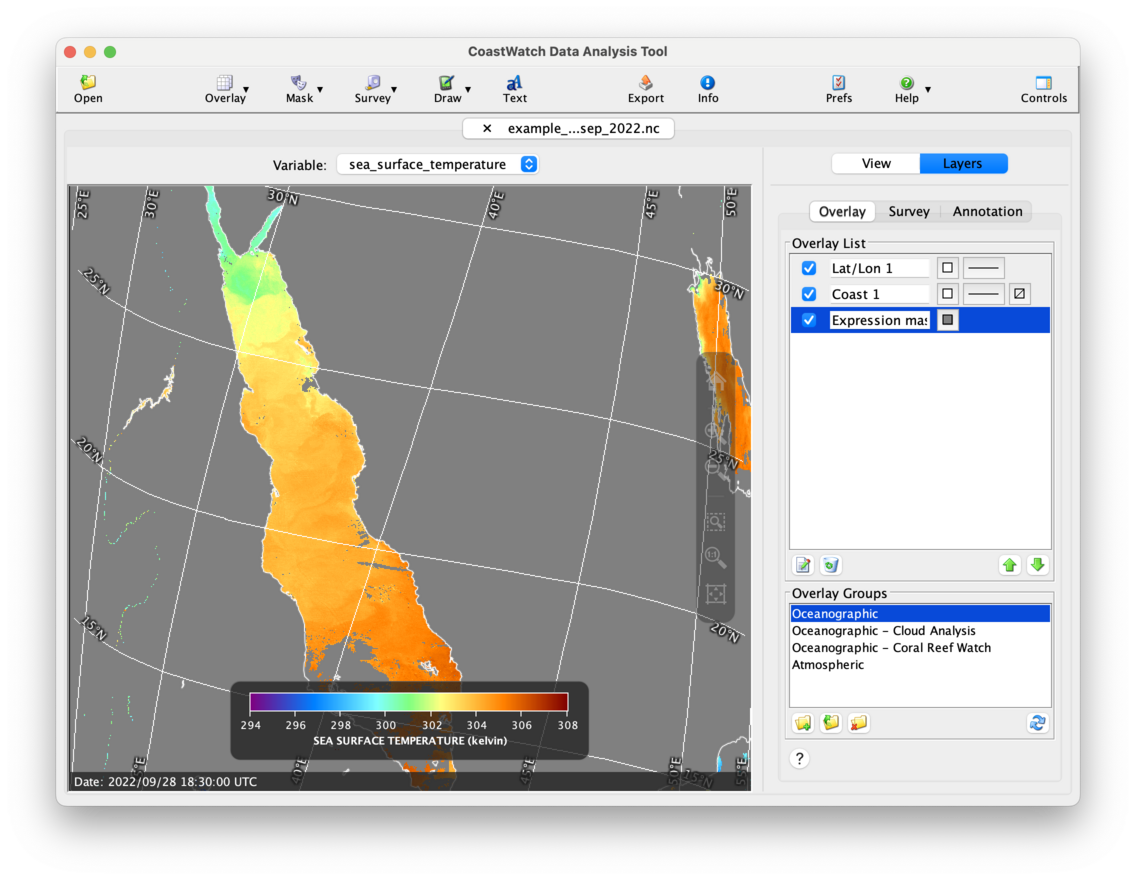
CDAT window showing sea surface temperature data in the Red Sea

Bonus exercises:

  • Try using Full Screen Mode accessed from the View menu, and use the controls to zoom and pan around the data view. Click the X at the top left to exit full screen mode.
  • Try changing the data view size either by dragging on the CDAT window edges, or you can use the Window size options in the View menu. This helps keep the view size the same to more easily export and compare images.
  • Watch a YouTube video on basic CDAT components and navigating around in the data view (the YouTube video covers an older version with slightly different view navigation controls).

« Previous · Next »