Direct Software Library Access (cwscript)
The cwscript tool gives direct access to the CoastWatch software library via the BeanShell language (similar to JavaScript). All of the CoastWatch API is available from the BeanShell script. See Chapter 4 - Programmer’s API in the user’s guide for finding the API documentation in your installation, or view the latest API online. This method of data access is useful for those with Java, C++, JavaScript, and Python programming experience. Since BeanShell is an interpreted language, cwscript can be used to:
- Perform rapid prototyping of code that may later be included in the main command line tools
- Extend the command line tools functionality by users
You can find sample scripts in the cwscript manual page. For example, copy and paste the following BeanShell code into a text file named script.bsh:
reader = noaa.coastwatch.io.EarthDataReaderFactory.create (args[0]);

info = reader.getInfo();
print ("source = " + info.getSource());

start = info.getStartDate();
print ("start = " + start);
end = info.getEndDate();
if (!end.equals (start)) {
  print ("end = " + end);
  duration = (end.getTime() - start.getTime())/1000;
  print ("duration = " + duration + " seconds");
} // if
Then run the code on the example_goci2_reflect_jan_2023.hdf data file:
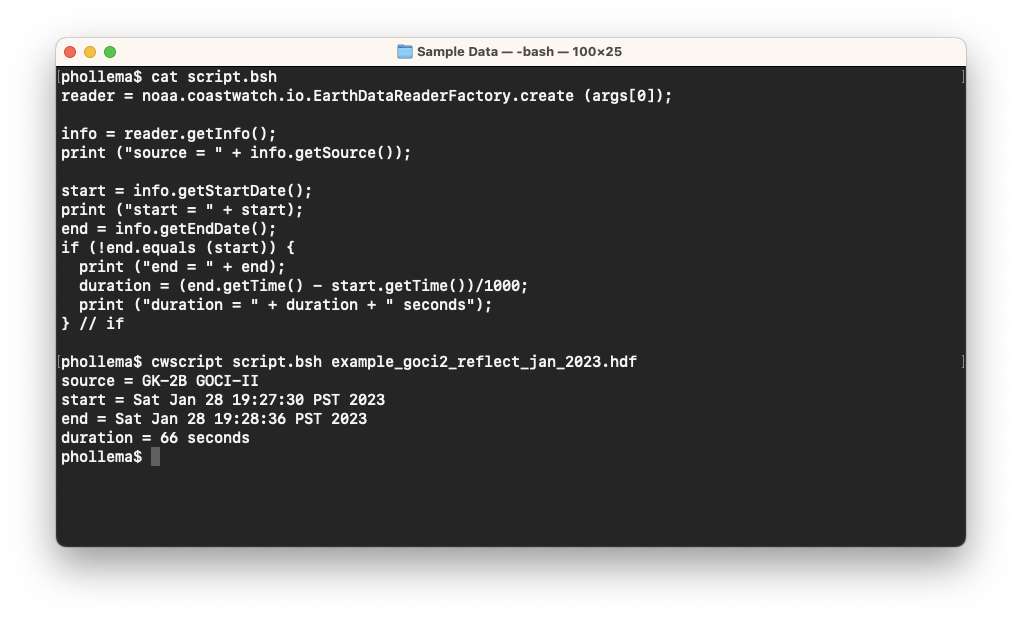
Your output may look different depending on your computer’s timezone. Running user-developed GUI applications is also possible using the companion cwgscript tool — for example copy and paste the following BeanShell code into a text file named coverage.bsh:
import java.awt.Color;
import java.awt.Dimension;
import javax.swing.JFrame;

import noaa.coastwatch.io.EarthDataReaderFactory;
import noaa.coastwatch.render.EarthContextElement;
import noaa.coastwatch.util.DataLocation;
import noaa.coastwatch.util.EarthLocation;
import noaa.coastwatch.util.SolarZenith;
import noaa.coastwatch.gui.GUIServices;
import noaa.coastwatch.gui.WindowMonitor;
import noaa.coastwatch.gui.EarthContextPanel;

file = args[0];
reader = EarthDataReaderFactory.create (file);
info = reader.getInfo();
trans = info.getTransform();
dims = trans.getDimensions();
rows = dims[0];
cols = dims[1];

center = trans.transform (new DataLocation (rows/2, cols/2));
element = new EarthContextElement (center);
element.setGrid (true);
element.setEdge (true);
element.setGridIncrement (10);
element.setSolarZenith (new SolarZenith (info.getDate()));
element.setSolarZenithFill (null, new Color (129, 121, 153));
min = new DataLocation (0, 0);
max = new DataLocation (rows-1, cols-1);
element.addBoundingBox (trans, min, max, new Color (0, 210, 236), null);

panel = new EarthContextPanel (element);
panel.setPreferredSize (new Dimension (800, 600));
frame = new JFrame (file);
frame.setContentPane (panel);
frame.addWindowListener (new WindowMonitor());
frame.pack();

GUIServices.showFrame (frame);
Then run the code as follows:
cwgscript coverage.bsh example_goci2_reflect_jan_2023.hdf
You should see a new window appear that looks like the following:
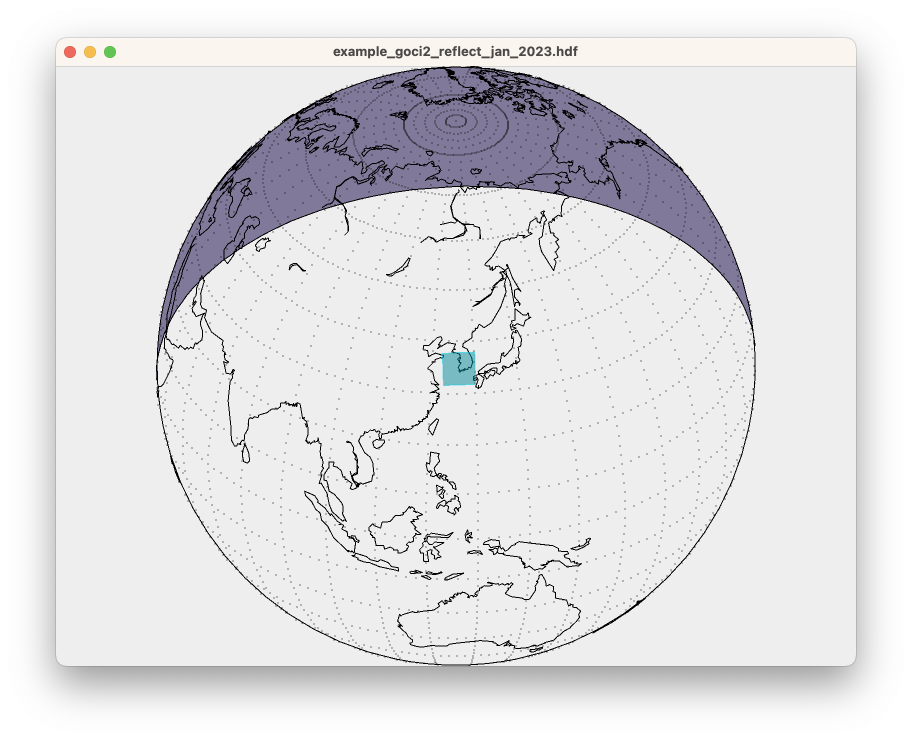
This is the GUI equivalent of the cwcoverage tool (not explicitly covered in this course) which performs a similar operation and outputs to an image file.
 Bonus exercises:
- Find other code examples to run in the cwscript manual page.
- Modify the coverage script code in some way. You can get ideas from the API documentation for the EarthContextElement class.
- Write a script that prints out the latitude and longitude of a data file center location.
- Look at the manual page for the cwcoverage tool and try running it on the same GOCI-II data file.