Hybrid Images
The cwrender tool can create a hybrid of a color enhancement and a color composite, using the options for both. For example, we’ll use the Himawari-9 Advanced Himawari Imager (AHI) data file which contains data from some of the visible AHI bands, as well as SST data derived from the thermal bands:
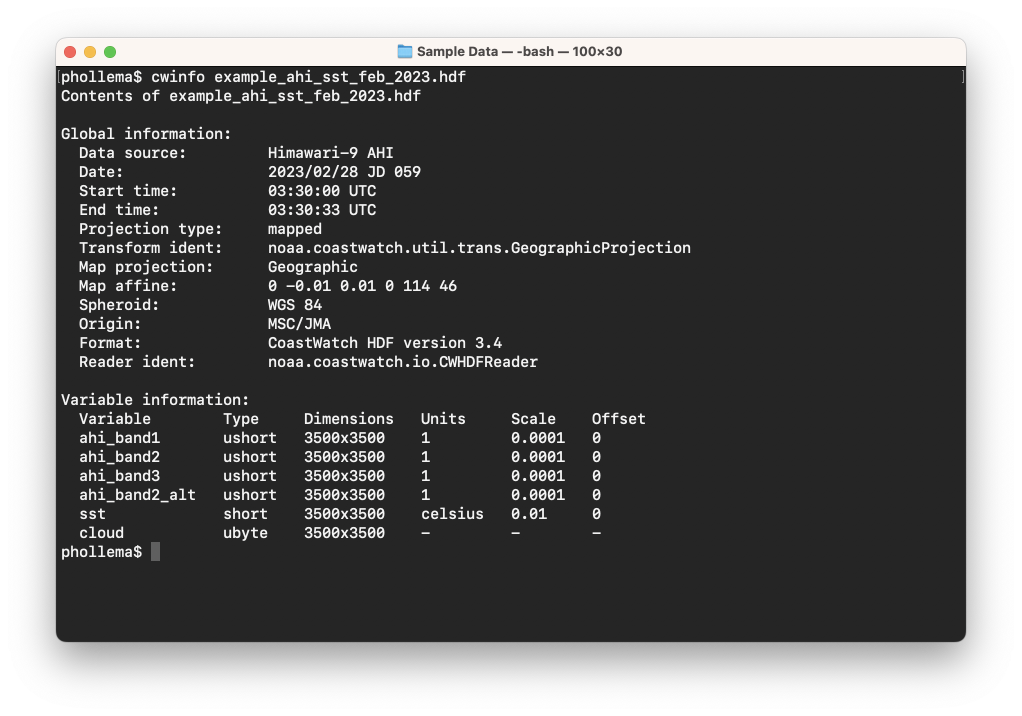
Use the following command to create a color enhancement of the SST data in the file (NOTE: if using the Windows command prompt, you may need to omit the spaces and quotes around the expression mask parameter, ie: use --exprmask cloud!=0/gray, or you may receive an error saying “cannot determine output format”):
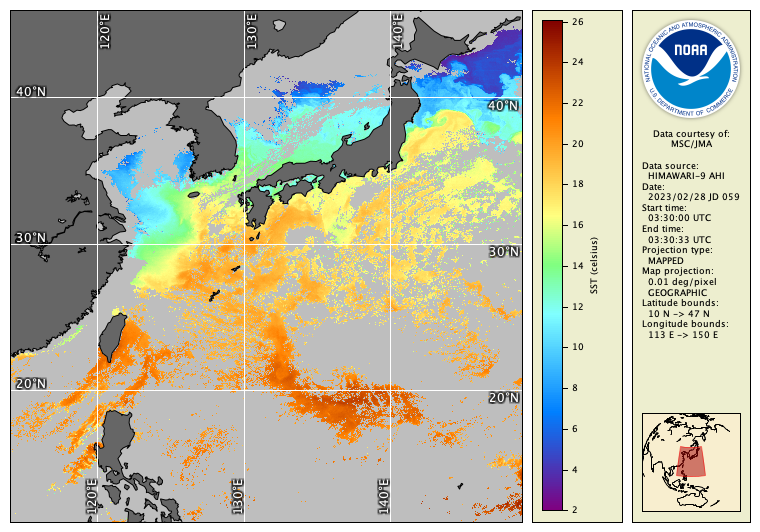
cwrender --enhance sst --palette HSL256 --range 2/26 --exprmask "cloud != 0"/gray --coast black/gray40 --grid white example_ahi_sst_feb_2023.hdf h9_sst.png
Note the use of the expression mask --exprmask option — the cloud variable is tested and for values than are non-zero, the SST data is masked to gray. This is often not necessary because SST data is commonly pre-masked (but this serves as a good example of expression masking). You should get the resulting image:
Now try creating a color composite using bands 1, 2, and 3 of the AHI sensor using ahi_band1, ahi_band2_alt, and ahi_band3:
cwrender --composite ahi_band3/ahi_band2_alt/ahi_band1 --compositehint true_color_uncorr --grid white example_ahi_sst_feb_2023.hdf h9_rgb.png
This is the resulting image:
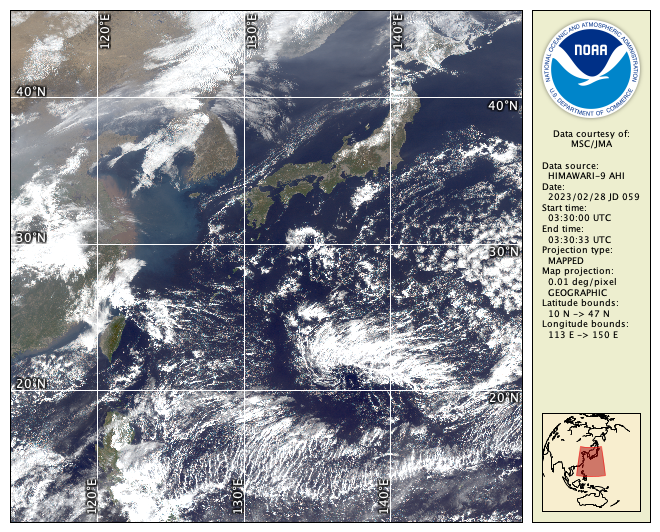
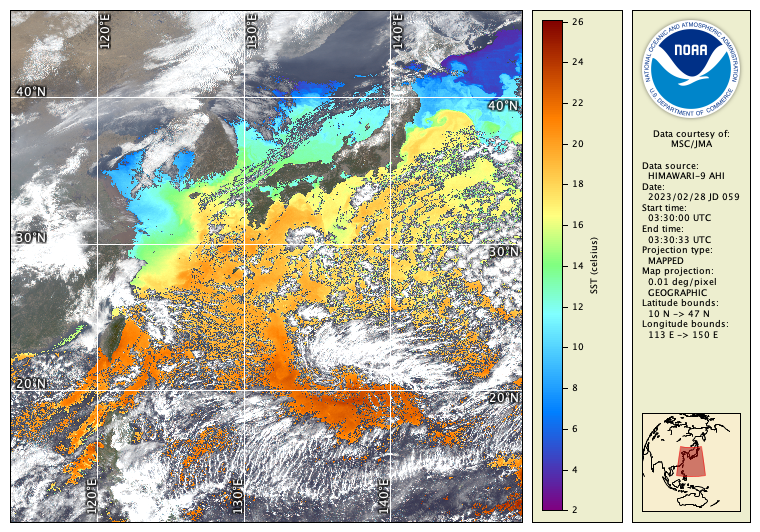
Note that we used the composite rendering hint --compositehint true_color_uncorr because the visible AHI band data is in reflectance units but is not corrected for sun angle or atmosphere. You can now create a hybrid of these two images by combining the cwrender options, but use --hybridmask rather than --exprmask to specify where the SST data should be transparent (see note above if you’re using the Windows command prompt):
cwrender --enhance sst --palette HSL256 --range 2/26 --hybridmask "cloud != 0" --composite ahi_band3/ahi_band2_alt/ahi_band1 --compositehint true_color_uncorr --grid white example_ahi_sst_feb_2023.hdf h9_hybrid.png
The resulting image looks like this:
Add a --magnify option to see the full resolution ~1 km data:
cwrender --magnify 32/132/1 --enhance sst --palette HSL256 --range 10/22 --hybridmask "cloud != 0" --composite ahi_band3/ahi_band2_alt/ahi_band1 --compositehint true_color_uncorr --grid white --coast black example_ahi_sst_feb_2023.hdf h9_hybrid_mag.png
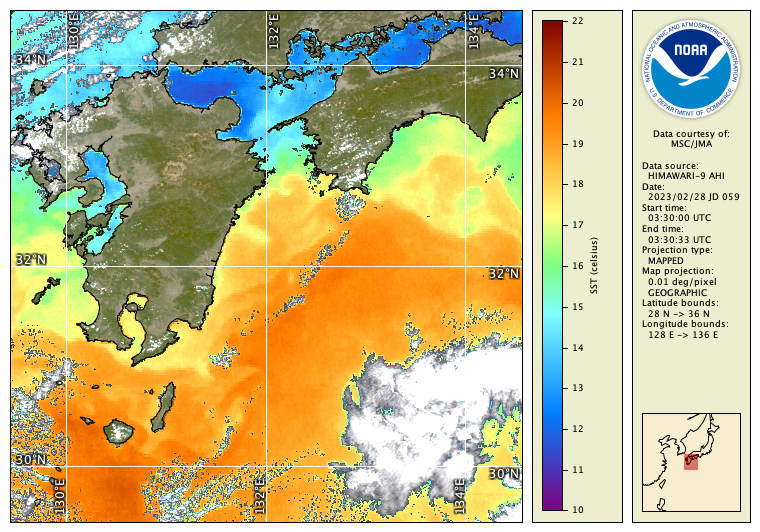
 Bonus exercises:
- What is the ocean temperature around Yakushima Island in February?
- What happens when you use the ahi_band2 variable in the color composite instead of ahi_band2_alt? See Murata et al (2018) for the explanation and solution.
- Try rendering bathymetric contours in the last magnified image, for example
--bath black/100/200/500/1000/2000/5000. - Read the Unix man page or the user’s guide entry for the hdatt tool (part of the CoastWatch Utilities, but not covered in this module). Use the example in the manual page to dump the global metadata of the Himawari-9 HDF data file. You can see some of the commands and equations used to create the data file.